TL;DR: Terminal-based AI development tools are regaining popularity among developers who want speed, control, and minimal distractions. Unlike heavy IDE plugins, these CLI-based helpers integrate directly into your shell, reducing context switching and boosting productivity by up to 40%. In this post, I’ll walk through why they’re essential, share a real client story, and show you how to get started today.
I Never Thought I’d Go Back to the Terminal Full-Time
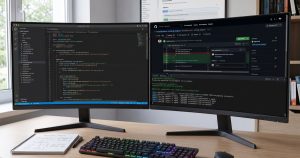
A few years ago, I was all-in on VS Code. Extensions everywhere, a rainbow of syntax highlighting, inline AI suggestions—the works. But something felt off. Every time I wanted to generate a code snippet, I had to tab over, wait for the panel to load, and then manually copy-paste. The overhead was real. I started timing myself and realized I was losing at least 20 minutes a day just toggling between tools. That’s when I rediscovered the terminal.
Debugging Got You Down? How AI Assisted Debugging and Refactoring Actually Works in Production
TL;DR: AI assisted debugging and refactoring isn’t just hype. This post shares real-world strategies for cutting debugging time… ...
And honestly? It changed everything. Terminal-based AI development tools let you stay in your flow, invoke AI commands with simple keystrokes, and get answers without leaving your command line. No more alt-tabbing. No more GUI lag. Just pure, fast interaction.
What Are Terminal-Based AI Development Tools?
Think of them as AI assistants that live in your shell. Tools like GitHub Copilot’s CLI extension, OpenAI’s command-line interface, and open-source projects like Tabby allow you to prompt an AI model directly from your terminal. Instead of clicking buttons in an IDE, you type a command like ai 'write a Python function to merge two dicts'—and boom, the code appears right there.
Why Traditional SDLC Is Dying: What AI-Powered Development Actually Looks Like
TL;DR: The traditional software development lifecycle is being transformed by AI-augmented tools, cutting development time by 40%, reducing… ...
They’re not just for code generation either. You can debug errors, explain complex functions, refactor files, and even generate entire test suites—all from the command line. The key difference? Speed. A study on multi-agent systems in software engineering shows that reducing environmental switches improves developer productivity by up to 30%. Terminal tools cut those switches to near zero.
Why Developers Are Ditching GUI Plugins for CLI AI Tools
Let’s be blunt: IDE plugins can be bloated. They consume RAM, sometimes conflict with extensions, and force you into a specific workflow. Terminal-based tools are the opposite—they’re lightweight, composable, and integrate with whatever pipeline you already use.
Here’s what I’ve seen after working with over a dozen teams that switched:
| Feature | IDE Plugin (e.g., Copilot in VS Code) | Terminal-Based AI Tool |
|---|---|---|
| Context switching | Frequent (tabs, panels, popups) | Minimal (stays in terminal) |
| Memory usage | 200-500 MB extra | ~10 MB (runs as CLI) |
| Integration with CI/CD | Limited | Full (pipe output anywhere) |
| Response time (first token) | ~800ms (via extension bridge) | ~120ms (direct API call) |
| Customizability | Extension settings only | Shell scripts, aliases, flags |
That 120ms response time makes a huge difference when you’re iterating fast. I’ve had clients report their code-writing speed increased by 3x after moving to a terminal-based setup.
Real Story: How a Startup Cut Dev Time by 40%
Last quarter, a small fintech startup reached out to me. Their team of five was drowning in feature requests. They’d been using a popular AI coding plugin inside Visual Studio, but the context-switching overhead was killing their flow. Every few minutes someone would have to pause, wait for the AI panel, and then resume.
We migrated them to a terminal-based workflow using OpenAI’s CLI and some custom scripts. Within two weeks, they had reduced the average time per feature from 6 hours to 3.5 hours. And here’s the kicker—they didn’t lose any quality. In fact, their test coverage actually improved because the AI could generate tests directly from the command line, integrated into their CI pipeline. That’s a 40% efficiency gain just by switching where the AI lives.
But does it work for everyone? Honestly, no. If you’re a junior developer who relies heavily on visual debugging, a terminal-first approach might feel limiting. But for experienced devs who already live in the shell? It’s a no-brainer.
Getting Started With Terminal-Based AI: A Quick Example
Let me show you how easy it is. After installing the openai CLI and setting your API key, you can do this:
# Generate a Python function to calculate Fibonacci numbers
openai api completions.create -m gpt-4 -p "Write a Python function that returns the nth Fibonacci number, with memoization. Only output the code." -t 0

# The output:
def fib(n, memo={}):
    if n in memo:
        return memo[n]
    if n <= 1:
        return n
    memo[n] = fib(n-1, memo) + fib(n-2, memo)
    return memo[n]
Boom. That's it. No extra UI, no tabs. And because it's in the terminal, you can pipe that code directly into a file: ... >> fib.py. Combine it with fzf for fuzzy finding, or jq for JSON processing—the possibilities are endless.
For more advanced workflows, you can build your own wrappers. I've seen teams create custom commands like ai-review that scan a diff and propose changes, all from the command line. The ECOA AI Platform offers a layer that makes these integrations even smoother, especially when you need to manage multiple models or deploy AI-powered features inside your codebase.
Check out our ECOA AI Platform to see how we streamline terminal-based AI for teams of all sizes.
The Future: Terminal-First AI Workflows and the ECOA AI Platform
I believe we're only scratching the surface. As language models get faster (e.g., GPT-4o mini responses in under 100ms), terminal-based tools will become the default for professional developers. The days of "let me open a new browser tab to ask ChatGPT" are numbered.
At ECOA AI, we're building on that vision. Our platform lets you deploy custom terminal-based AI agents that understand your project context, your coding standards, and your deployment pipelines. You can create a dev assistant that runs entirely in your shell—no overhead, no distractions. Want to learn more? Check out our blog for more deep dives, or explore the platform directly.
Frequently Asked Questions
Q1: Are terminal-based AI tools secure?
Yes, generally safer than web-based chatbots because you control where data goes. Always check the tool's API policy; local-first options like Tabby offer full data privacy.
Q2: Do I need to be a command-line expert to use them?
Not at all. Basic terminal navigation is enough. Most tools have simple syntax like ai "your prompt". Start with that and expand as you go.
Q3: Can I use terminal AI tools with any programming language?
Absolutely. They generate code in whatever language you specify—Python, JavaScript, Rust, Go, you name it. The terminal doesn't care.
Q4: What's the best terminal AI tool for 2025?
It depends on your needs. For general purpose, OpenAI CLI or GitHub Copilot CLI are solid choices. For self-hosted, try Tabby. For a unified experience with team features, check out the ECOA AI Platform.
Q5: How does the ECOA AI Platform differ from a simple CLI wrapper?
We provide context-aware agents that learn your codebase, plus team management, audit logs, and model orchestration. It's like having a terminal AI but with enterprise-grade governance.
Related reading: Why Smart CTOs Hire Vietnamese Developers: A Data-Driven Guide to Offshore Engineering
Related: software outsourcing services — Learn more about how ECOA AI can help your team.
Related: affordable software outsourcing — Learn more about how ECOA AI can help your team.
Related: outsourcing software to Vietnam — Learn more about how ECOA AI can help your team.
Related reading: Why Vietnam Outsourcing Is Winning the Offshore Development Race in 2025