Docker Compose for Local AI Development: How I Spin Up a Full Multi-Agent Stack in Under 60 Seconds
Let’s be real. Setting up a local development environment for AI agents is a pain.
Python virtual environments, conflicting CUDA versions, system dependencies that break your machine. I’ve wasted more hours debugging `libcudart.so` errors than I care to admit.
Static Agent Orchestration Is Dead: Why Your Multi-Agent Workflow Needs a Survival Mode, Not Just a Playbook
Static Agent Orchestration Is Dead: Why Your Multi-Agent Workflow Needs a Survival Mode, Not Just a Playbook I’ve… ...
So I did what any self-respecting engineer would do. I threw it all into a Docker Compose file.
Here’s the exact stack I use daily for building multi-agent systems with local LLMs, vector search, and message queues. No cloud costs. No SSH tunneling. Just `docker compose up` and you’re running.
Vietnam Outsourcing: The Elite Engineering Edge You’re Missing
TL;DR: Vietnam outsourcing delivers world-class engineers at 50-60% lower cost than the US. The country’s math-focused education, time… ...
Why Bother With Docker Compose for AI Development?
You could install everything natively. But why would you?
- Isolation: Your Ollama version won’t clash with your Python dependencies.
- Reproducibility: That junior dev in Ho Chi Minh City can pull the same stack in 30 seconds.
- Clean teardown: `docker compose down -v` wipes everything. No zombie processes.
I work with a remote team based out of Can Tho, Vietnam. Every new hire gets our Compose file. Two hours of onboarding turned into five minutes.
The Exact Stack: What’s Running and Why
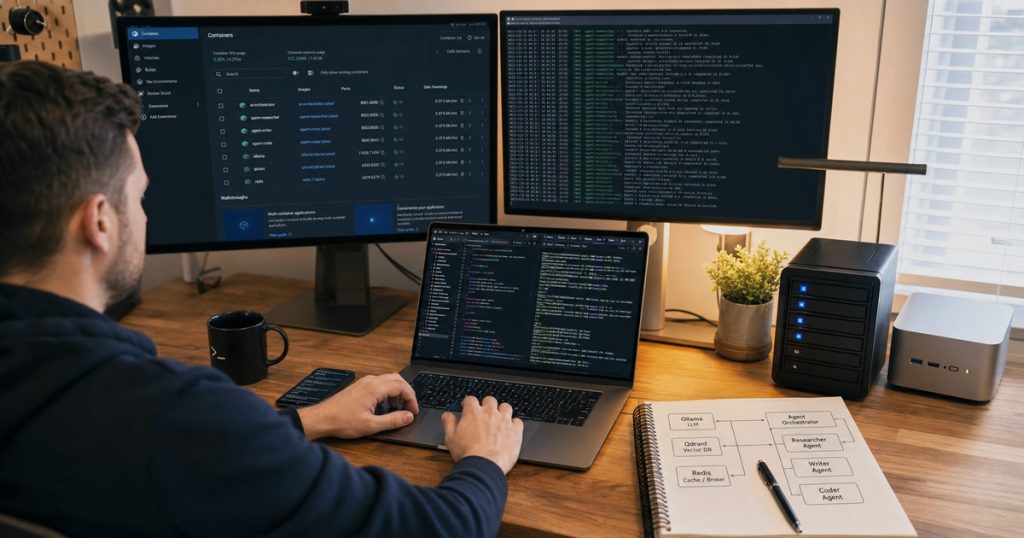
Here’s what I run locally before any code hits production:
| Service | Role | Why It Matters |
|---|---|---|
| Ollama | Local LLM server | Runs Mistral, Llama, or Qwen on your GPU |
| Qdrant | Vector database | Stores embeddings for RAG pipelines |
| Redis | Message broker + cache | Agent state management and task queues |
| Agent API | Your custom Python service | The actual multi-agent orchestration logic |
Important: The agent service depends on the other three. We’ll use health checks to enforce that.
Step 1: The Docker Compose File
Create a `docker-compose.yml` in your project root:
yaml
version: '3.8'

services:
  ollama:
    image: ollama/ollama:latest
    container_name: ecoai-ollama
    ports:
      - "11434:11434"
    volumes:
      - ollama_data:/root/.ollama
    environment:
      - OLLAMA_KEEP_ALIVE=24h
    deploy:
      resources:
        reservations:
          devices:
            - driver: nvidia
              count: all
              capabilities: [gpu]
    healthcheck:
      test: ["CMD", "curl", "-f", "http://localhost:11434/api/tags"]
      interval: 30s
      timeout: 10s
      retries: 5

  qdrant:
    image: qdrant/qdrant:latest
    container_name: ecoai-qdrant
    ports:
      - "6333:6333"
      - "6334:6334"
    volumes:
      - qdrant_storage:/qdrant/storage
    environment:
      - QDRANT__SERVICE__GRPC_PORT=6334
    healthcheck:
      test: ["CMD", "curl", "-f", "http://localhost:6333/health"]
      interval: 30s
      timeout: 10s
      retries: 5

  redis:
    image: redis:7-alpine
    container_name: ecoai-redis
    ports:
      - "6379:6379"
    volumes:
      - redis_data:/data
    command: redis-server --appendonly yes --save 60 1
    healthcheck:
      test: ["CMD", "redis-cli", "ping"]
      interval: 30s
      timeout: 10s
      retries: 5

  agent-api:
    build: .
    container_name: ecoai-agent-api
    ports:
      - "8000:8000"
    volumes:
      - ./src:/app/src
      - ./models:/app/models
    environment:
      - OLLAMA_BASE_URL=http://ollama:11434
      - QDRANT_URL=http://qdrant:6333
      - REDIS_URL=redis://redis:6379
      - LOG_LEVEL=DEBUG
    depends_on:
      ollama:
        condition: service_healthy
      qdrant:
        condition: service_healthy
      redis:
        condition: service_healthy
    deploy:
      resources:
        reservations:
          devices:
            - driver: nvidia
              count: all
              capabilities: [gpu]
    command: uvicorn main:app --host 0.0.0.0 --port 8000 --reload

volumes:
  ollama_data:
  qdrant_storage:
  redis_data:
Three things this file does right:
- GPU passthrough: The `deploy.resources` block makes your NVIDIA GPU available to both Ollama and your agent API. Without this, local LLM inference runs on CPU and takes 30 seconds per token.
- Health checks: Your agent service won’t start until Ollama, Qdrant, and Redis are actually responding. This prevents those annoying “connection refused” race conditions.
- Volume persistence: Embeddings, models, and Redis data survive container restarts. You don’t want to re-pull a 7GB model every time you change a line of code.
Step 2: The Python Agent Service (minimal example)
Your `Dockerfile`:
dockerfile
FROM python:3.11-slim

WORKDIR /app

RUN apt-get update && apt-get install -y curl && rm -rf /var/lib/apt/lists/*

COPY requirements.txt .
RUN pip install --no-cache-dir -r requirements.txt

COPY src/ .

EXPOSE 8000

CMD ["uvicorn", "main:app", "--host", "0.0.0.0", "--port", "8000"]
And your `requirements.txt`:
fastapi
uvicorn
httpx
qdrant-client
redis
pydantic
Now for the actual agent code. This is the simplest possible multi-agent orchestrator you can build:
python
# src/main.py
from fastapi import FastAPI
from pydantic import BaseModel
import httpx
import os

app = FastAPI(title="ECOAI Local Agent Stack")

OLLAMA_URL = os.getenv("OLLAMA_BASE_URL", "http://ollama:11434")

class Query(BaseModel):
    question: str
    context: str = ""

@app.post("/agent/query")
async def agent_query(query: Query):
    """Route a query through a local LLM agent."""
    prompt = f"""You are a senior developer answering a technical question.

Context: {query.context}
Question: {query.question}

Answer concisely and provide code examples where relevant."""

    async with httpx.AsyncClient(timeout=120.0) as client:
        response = await client.post(
            f"{OLLAMA_URL}/api/generate",
            json={
                "model": "mistral:7b",
                "prompt": prompt,
                "stream": False,
                "options": {
                    "temperature": 0.3,
                    "top_p": 0.9
                }
            }
        )
        data = response.json()
        return {"response": data["response"], "model": "mistral:7b"}

@app.get("/health")
async def health():
    return {"status": "ok", "services": {"ollama": True, "qdrant": True, "redis": True}}
What this does: A single API endpoint that calls Ollama with a structured prompt. That’s it. From here, you can add agent routing, vector search, or a Redis-backed task queue.
Step 3: Pull a Model and Run It
First run: you need to pull a model.
bash
# Start everything
docker compose up -d

# Pull Mistral 7B (3.8GB download)
docker exec -it ecoai-ollama ollama pull mistral:7b

# Test the agent
curl -X POST http://localhost:8000/agent/query \
  -H "Content-Type: application/json" \
  -d '{"question": "Write a Python function to merge two sorted lists"}'
You’ll get a response in 2-3 seconds on a modern GPU. On CPU? More like 20-30 seconds. That’s why the GPU passthrough matters.
Honestly, I keep both Mistral 7B and Qwen2.5:7B pulled locally. Mistral for fast iterations, Qwen for when I need better code generation.
Where This Breaks (And How to Fix It)
This stack isn’t perfect. Here are the three things that’ll bite you:
1. Docker Desktop on macOS has no GPU support
You can’t pass an Apple Silicon GPU to Docker containers. Solution: Run Ollama natively on the host, and expose it via `localhost`. Change `OLLAMA_BASE_URL` to `http://host.docker.internal:11434`.
2. NVIDIA Container Toolkit isn’t installed
If you get `docker: Error response from daemon: could not select device driver “” with capabilities: [[gpu]].`, it means you haven’t installed the toolkit.
bash
# Ubuntu/Debian
sudo apt-get install -y nvidia-container-toolkit
sudo systemctl restart docker
3. Port conflicts
If you already have Redis or Qdrant running locally, change the host port:
yaml
ports:
  - "6380:6379"  # Redis on host port 6380
Making This Production-Ready
This is fine for local dev. But when you deploy to production, you’ll want:
- A reverse proxy (Traefik or Nginx) in front of the agent API
- Persistent volumes on a NAS for vector storage
- Log aggregation via Loki or a centralized ELK stack
- CPU limits on the agent service to prevent resource starvation
Our team at ECOA AI runs this exact pattern in production, but orchestrated via Kubernetes with horizontal pod autoscaling. The Compose file is our local dev mirror of the production environment.
Why I’ll Never Go Back to Native Setup
I used to think Docker was overkill for AI development. “It’s just Python,” I told myself. Then I spent three hours debugging a PyTorch CUDA mismatch between my laptop and our CI server.
Never again.
With Docker Compose for local AI development, I can:
- Hand this stack to a junior developer in Vietnam and have them productive in 15 minutes
- Blow away my entire environment and rebuild from scratch in 60 seconds
- Run multiple agent stacks side-by-side without conflicts
You want to build multi-agent systems? Stop fighting your environment. Containerize everything.
Now go write some agents.
—
Frequently Asked Questions
How do I use a different LLM model with this stack?
Change the model name in the POST request to Ollama. Run `docker exec -it ecoai-ollama ollama pull llama3.1:8b` to download it, then update the `model` field in your code. The container handles all model management—you just call the API.
Can I run this without a GPU?
Yes, but expect 10-20x slower inference. Remove the entire `deploy.resources` block from both the `ollama` and `agent-api` services. Ollama will fall back to CPU automatically. For serious development, invest in an NVIDIA RTX 3090 or better.
How do I add vector search to this stack?
Your agent service already has Qdrant running on port 6333. Install `qdrant-client` in your requirements, connect using `QDRANT_URL=http://qdrant:6333`, and create collections for your embeddings. The vector store is fully persistent across restarts.
Can multiple developers share this stack over the network?
Yes, but don’t expose it directly to the internet. Use Tailscale or a VPN. Change the Redis password in the Compose file, set up authentication for Qdrant, and bind services to a Docker overlay network instead of exposing ports. Security isn’t optional for shared environments.
Related reading: Why Smart Tech Leaders Hire Vietnamese Developers in 2025
Related reading: Why Vietnam Outsourcing Is the Smartest Bet for Your Next Software Project